BackTo Top
Jasa FrieLancr Ankshana

Advertisement by FrieLancr Ankshana
 
Google ads
Google ads

Mozilla Firefox Advertisement by FrieLancr Ankshana

Minggu, September 11

Hosting: Promo Dari NTC

Promo Hosting Dari NTC Hosting: Gratis 1 Tahun Domain (.COM, .NET, .BIZ, .INFO, .US)

The FrieLancr Al-Ambity

How to get a free domain name through the Control Panel

Getting a free domain name takes 3 easy steps - selecting the desired domain, and then a web hosting plan to accommodate it, and ordering the services online:
  1. To take advantage of our free domain name offer, you should first open the Domains page on the NTC Hosting website. To do this, click on the Domain Names tab in the main navigation menu.
  2. In the domain name section you will see a variety of domain options offered. In this example you need to click on the link titled Free Domain Name with Hosting Plan to see the available free domain name offers.
  3. You are taken to the Free Domain Registration with Hosting page, offering a wealth of free domain name registration and free domain transfer services. The free domain offer applies to the most popular TLDs available online: .COM, .NET, .ORG, .INFO, .US and .BIZ. You can get a free domain name with almost all regular and free scripts optimized hosting plans offered on this site.
  4. Next specify your free domain name choice in the Domain Name Check field. Make sure to not include the TLD part when specifying your desired domain name. After that select the preferred TLD for your domain from the drop-down menu. Click on GO to check if the desired domain name is available for registration or transfer. The search results coming up will show a zero price for the top most popular TLDs. All those domains will come free of charge with your web hosting plan.
  5. To select a certain domain name from the search results list, simply tick off its corresponding checkbox. You may need to pay a certain fee if only you wish to set ID protection to your domain. With this service you will have your domain registration details hidden from the public eye. To set ID protection to your domain - simply mark the Whois Protect checkbox right under the selected domain name.
  6. As soon as you are ready with your selection of a domain name - click on the Sign-up button.
  7. You will be sent to our sign- up page where you need to select the type of a web hosting plan that will accommodate your domain name and specify your account details.
    1. First specify your hosting account username. You should think of a memorable username to access your hosting account. This is a one-off choice since the username cannot be modified after sign-up.
    2. Next select the billing period for your hosting account - either an annual subscription, or a monthly billing cycle.
    3. The next option you have is to select the web hosting plan that you wish to use your free domain name with. A free domain name offer is included in the Value, Plus and Exclusive web hosting plans offered on this site and all free- script optimized offers: the Joomla, the E-learning, the WordPress and the 4images hosting plans. Upon selecting your preferred hosting plan, you will see the 1-year free domain name registration or transfer service listed as a key plan feature.
    4. Next select the currency in which you wish to pay for the hosting service. This will be US dollars, British pounds, Euro, AU or CA dollars.
    5. Then select the data center where your sites will be hosted.
    6. After filling out your account information you will need to select your preferred payment method. Please note that by placing the order you will automatically agree with our Terms and Conditions.
    7. Next click on the Continue button to proceed to the billing information page, where you should submit your credit card details.
    8. Finally, click on Submit Payment to submit the transaction and get your free domain name with a web hosting plan.
Now you know how to easily get a free domain name registration or free domain transfer with a low-cost web hosting plan.

Sumber: http://www.ntchosting.com/videos/how-to-get-free-domain-with-hosting.html

Senin, Agustus 29

Best Free Domain Indonesia

Best Free Domain Dari Indonesia

The FrieLancr Al-Ambity
Bagi anda yang ingin memiliki suatu website tentunya domain merupakan komponen penting dalam pembuatan website. Apakah pengertian Domain?
Domain adalah nama unik yang diberikan untuk mengidentifikasi nama server komputer seperti web server atau email server di internet.

Domain memberikan kemudahkan pengguna di internet untuk melakukan akses ke server dan mengingat server yang dikunjungi dibandingan harus mengenal deretan nomor atau yang dikenal IP. Domain ada yang berbayar ada pula yang gratis, domain berbayar biasanya merupakan Top Level Domain (TLD) antara lain .com, .org, .net, .gov, .info, .tv, cc dan lain lain.

Domain gratis biasanya merupakan Second Level Domain atau Sub Dub domain dari Top Level Domain. Meski merupakan sub domain, namun Domain Gratis ini bisa kita menfaatkan layaknya Top level domain. Karena penyedia Domain gratis ini juga melengkapi domain gratis tersebut dengan fasilitas management DNS antara lain setting Name Server, URL Fowarding dan juga Full DNS Management yaitu fasilitas A Record, MX Record, NS Record, CNAME dan TXT Record.

Beberapa domain gratis untuk website antara lain :
  1. CU.CC Domain GratisTerbaru daftar di http://domain-gratis.cu.cc 
  2. CO.CC daftarkan domain gratis co.cc di http://co.cc /
  3. CZ.CC daftarkan domain gratis cz.cc di http://nic.cz.cc /
  4. CO.NR domain gratis ini hanya memiliki fasilitas url fowarding, daftarkan di http://www.freedomain.co.nr 
Domain gratis diatas seluruhnya bisa manfaatkan untuk kebutuhan website, blog, site email atau url fowarding. Domain gratis diatas juga bisa anda gunakan pada web hosting berbayar maupun hosting gratis. Domain Gratis bisa anda dapatkan secara gratis melalui link di atas, meski ada beberapa domain premium yang hanya bisa anda dapatkan dengan register berbayar.

Diantara domain gratis diatas, yang terbaik menurut saya adalah co.cc karena domain co.cc bisa dimanfaatkan sebagai domain parking untuk Google Adsense. Domain juga bisa anda manfaatkan sebagai website pengganti alamat blogspot atau wordpress anda sekaligus digunakan sebagai nama email pribadi (seperti: saya.admin@frielancr.info).

Jumat, Agustus 5

Cara Online: Mengecheck Resi JNE

Cara Online: Mengecheck Resi JNE

Cara Online Mengecheck Resi JNE
Cara Online menge-Check Resi JNE: Express Across Nations adalah semboyan dari JNE, yaitu salah satu layanan delivery order ke seluruh wilayah di Indonesia.

Estimasi ke daerah Jabodetabek yaitu antara 1 -2 hari, sedangkan kota-kota (diluar Jabodetabek) yang merupakan Ibu kota propinsi di Pulau Jawa + Palembang estimasinya hingga 2 (dua) hari. Selengkapnya anda bisa tanyakan kepada penjualnya saat anda melakukan order barang.

Harap diingat! Isi artikel dari blog ini hanya sekedar share dan alternatif saja, bukan sebagai bagian promosi dari jasa pengiriman JNE.


TRACE & TRACKING

Anda bisa menggunakan form dibawah ini untuk melakukan pengecekan barang kiriman Anda.

Masukkan nomor resi anda
(Maksimal 20 resi. bila lebih dari 1 resi, ketik per baris.)

Masukkan kode capcay dibawah ini, lalu klik “Submit”

Jika kode captcha susah sekali dibaca, refresh saja halaman ini dengan menekan tombol F5 pada keyboard anda. 


--atau--

Anda juga bisa menggunakan form dibawah ini: 

Nama:
No. Resi:

Smiley Images | Kurang puas dengan layanan (isi artikel) ini? langsung saja kunjungi situsnya di www.jne.co.id | Smiley Images


Sabtu, Juli 23

Online: Mencari Kode Pos Suatu Daerah

Cara Online: Mencari Kode Pos Suatu Daerah

cara online mencari kode pos daerah
Cara Online menCari Kode Pos: Kode pos sangatlah penting karena digunakan oleh setiap orang untuk menentukan alamat pasti rumah anda, karena kode pos setiap daerah di Indonesia berbeda-beda.

Bagi Anda yang jarang buka KTP atau bahkan nggak punya KTP sama sekali :( dan tidak tahu kode pos rumah/daerah anda sendiri, silahkan gunakan tools berikut ini untuk mencari kodepos rumah/daerah tempat anda bermukim.

Semoga dengan tools tersebut anda bisa lebih dimudahkan dalam upaya untuk mengetahui kode pos suatu alamat.


TRACE & TRACKING

Masukkan nama daerah anda (bisa kecamatan maupun kelurahan) pada form dibawah ini, lalu klik tombol “cari kodepos” atau “search”. 
 
Nama Daerah
 

Smiley Images | Kurang puas dengan layanan (isi artikel) ini? langsung saja kunjungi situsnya disini | Smiley Images


Mengganti Nama Akun/Profile Facebook

Cara Mengganti Nama Akun Facebook

Cara Mengganti Nama Akun Facebook
Setelah sekian banyak teman-teman yang ada dikampung penulis menanyakan tentang bagaimana cara mengganti nama akun/profile facebook-nya, maka penulis-pun mencari-cari informasi kesana dan kemari hingga akhirnya bisa menyelesaikan masalah tersebut lalu mempostingnya untuk sobat seperti tertulis dibawah ini.
Selamat mencoba...
=> Langkah pertama: bila sobat menggunakan hp, disarankan untuk menggunakan aplikasi Opera Mini (BUKAN PROMOSI LHO!) dengan setting-an tampilan fullsite (tampilan komputer);
=> Langkah kedua: silahkan login/masuk ke akun facebook sobat;
=> Langkah ketiga: setelah login, tinggal sobat ganti nama akun sobat yang dulu pernah dipakai atau langsung klik PERBARUI NAMA.
=> Langkah keempat: atau rubah data diri anda di akun facebook anda, karena facebook mengetahui setiap perubahan data diri anda.

Kalau sudah, silahkan anda masuk ke halaman ini atau ke sini (intinya: SAMA SAJA, TERSERAH KAMU SUKA YANG MANA).

Klik amankan akun dan ikuti langkah demi langkah sampai ada tanda seperti ini:
=> Buat password baru untuk akun facebook sobat (minimal 7 karakter dan JANGAN menggunakan password lama). -UPDATED
=> Klik lanjutkan, cheklist (centang) semua email anda. -UPDATED
=> Klik lanjutkan, nanti ada dialog konfirmasi penggantian nama akun. -UPDATED

    nama akun facebook sobat (silahkan ganti sesuai keinginan), lalu klik tombol ganti.

=> jika sudah, tinggal ikuti langkah berikutnya sampai sobat dibawa masuk ke halaman facebook normal lagi.

untuk mengganti nama sepuasnya, tinggal sobat ulangi langkah diatas.

<[ WARNING ]>
sebelum langkah-langkah diatas selesai, JANGAN di-exit, pindah ke beranda, profil, dll.

Rabu, Juli 6

HowTo: Create CD Images with Ultra Iso

The FrieLancr Al-Ambity
By here, you can download ultraiso for free. With it, you can mount Windows bootable disk. Other ISO disc images can also be mounted in virtual drive, Ultraiso is used for cd creating.

If you are thinking how to create a cd disk image, then don’t wait and click on blue button for free download ultraiso. This software is full version. You can mount the boot disc using the ultraiso virtual drive option. Ultraiso is also used to copy a cd to cd, and you can create bootable disks also.

free download ultraiso

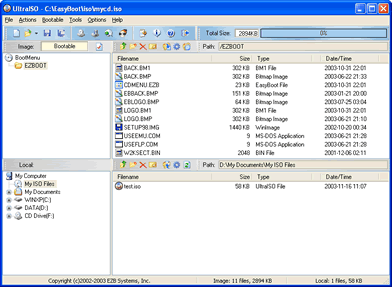
Ultraiso is product of Ezbsystems. It is UltraISO is a disk image file editing software. It also works as a bootable disk maker. You can create and edit CD images from this tool. This gives you fill control to have own ISO images and then later on you can burn to CD or DVD. Ultraiso is very easy to use and the quick buttons with mouse Drag and Drops helps you to create cd easily. Ultraiso can process all types of image files.

free download ultraiso

UltraISO System Requirments

If you want to know what are minimum UltraIso System requirments then read here:
  • Operation System Windows 7, Windows 8, Windows XP
  • Intel Pentium 166 MHz or Above
  • 64MB of RAM
  • 10MB DiscSpace

How to Create a CD with UltraISO

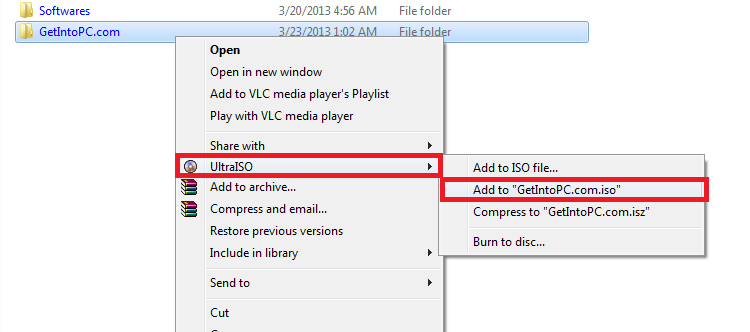
After you have download ultraiso free and install it, then go to folder for which you are creating a cd. Select the folders and right click, you’ll see the options of Ultraiso: Add to “Folder.iso”. Click on this ultriso option and you’ll see progress of creating a iso file. Once this is complete the iso file will appear. You can burn a CD using ultraiso option.

free donwload ultraiso

Download UltraISO Free

This is ultraiso direct single download link, so click on below button to begin ultraiso download free.

Download Links

Notes: This is official Trial Version of software. If you want to purchase full version, click here to buy.

Senin, Juli 4

Driver Printer Epson L200 for Win XP, Vista, 7

Download And Install Driver Printer Epson L200 Win XP, Vista, 7

The FrieLancr Al-Ambity
How to install the drivers Epson L200 for Windows :
  1. Download the driver Epson L200, click below:
    - Driver Printer Epson L200 (direct download) Download
    - Mirror Download
  2. Make sure the printer usb cable plugged into the laptop or computer
  3. Open the file has been downloaded, double click on the file
  4. Follow the instructions that appear during installation
  5. When finished doing test print and scan test
  6. If test print and scan test is not a problem, then we have succeeded driver installation
  1. Select your Operating System(s): Windows XP, Windows 7, Windows 8
  2. Operating System(s): Mac OS X
This driver works both the Epson L200 Printer Download.

   Beranda   
Google ads
 

Top Commenters

 
Advertisement by FrieLancr Ankshana

LinkTo Us

 80x15 » The FrieLancr Ankshana
The FrieLancr Al-Ambity« 80x15 
and see the FollowUp List page.
Advertisement by FrieLancr Ankshana


© 2008- Jasa FrieLancr Ankshana Al-Ambity, Bocah Cherbond Terus Berdikari dan Turut Berbhakti.
FrieLancr.blogspot.com is proudly powered by Powered by Blogger.com Powered by FeedBurner
Template by o-om.com - zoomtemplate.com
 
 
BackTo Top